5. Color Management, Soft Proof & Advanced B&W
Under 3. Color settings (cf. EPL User Guide pp. 29–31), LumaPrint operates with end-to-end 16-bit precision and preserves the original source color space of every imported image (sRGB, Adobe RGB, Display P3, ProPhoto RGB).
Tip
Background on Color Spaces & ICC Profiles: For an accessible explanation of how source color spaces, ICC paper profiles, third-party papers, and printer-internal color management work together, see the fundamentals chapter How Color Spaces and Color Profiles Work in Printing.
1. View Switcher: Normal vs. Advanced
To keep everyday color settings clean and prevent misconfigurations, the 3. Color settings section offers two views:
Normal View (Default)
Streamlines the interface to the two primary color workflows and sets all technical sub-options automatically:
- Color Mode Selection:
1. Color-managed (ICC paper profile) (Default):
- Automatically selects the ICC profile associated with the chosen paper.
- Automatically applies Relative colorimetric + Black point compensation (BPC) as well as NoColorAdjustment in the printer driver.
2. Printer automatic:
- Automatically hands over the image in the wide Adobe RGB (1998) color space (LUT 0x06) to the printer driver (like Epson Print Layout Intent: Automatic).
- Output sharpening: Directly selectable (Off (1:1 original), Low, Standard (recommended), High (matte fine art paper)).
- Automatic Safeguards in Normal View:
- When a third-party custom media entry is selected, LumaPrint automatically switches to Color-managed (ICC paper profile), since the printer firmware does not know third-party papers internally.
- When 👁 Soft proof is enabled in the top toolbar, LumaPrint also switches automatically to Color-managed (ICC paper profile) so that the on-screen simulation and the final print match.
Advanced View
Unlocks all detailed and specialized color controls:
- All 4 Color Modes in the dropdown:
1. Color-managed (ICC paper profile)
2. Printer automatic
3. Black & white (Advanced B&W in the printer) or Black & white (LumaPrint toning) — the label indicates whether the printer firmware or LumaPrint computes the toning (see Section 5)
4. Calibration (no color management)
- ICC Profile Selection (Automatic vs. Manual): Allows choosing any installed profile or loading any .icc / .icm file from disk via the file dialog (📂 Choose ICC…).
- Manual Rendering Intent & Black Point Compensation (BPC).
- Intent / Color Space (Adobe RGB (EPL automatic / recommended) vs. sRGB (EPSON standard)) in Printer automatic mode.
- Driver Status Indicator: Transparently displays which CUPS option (EpsonColorMode=NoColorAdjustment, EpsonAdobeRGB, AdvancedBW, etc.) is sent to the driver.
2. Color-Managed (ICC Paper Profile)
Recommended for color-accurate fine-art printing with official manufacturer profiles (EE2NE_00..14.ICC) and mandatory for all third-party papers (Hahnemühle, Photolux, Canson, Ilford, Marrutt):
- ICC Profile Selection:
- Automatic: Automatically uses the ICC profile assigned to the selected media type (or custom media entry).
- Manual (in Advanced view): Select from all installed profiles or load any .icc/.icm file directly via the file dialog (📂).
- No profile found: The status indicator shows ⚠ No profile, and printing is refused. Without a profile, the image would be printed unaltered with NoColorAdjustment — i.e., without any color management at all. LumaPrint intentionally refuses to fall back silently to a profile for a different paper. Remedy: load a profile via 📂 or choose a different color mode.
- Rendering Intent (selectable manually in Advanced view; automatically set to Relative colorimetric + BPC in Normal view):
- Relative colorimetric: Reproduces in-gamut colors accurately and adapts the white point to the paper white (standard for fine-art printing with Black point compensation / BPC enabled).
- Perceptual: Compresses the entire color gamut smoothly while preserving tonal relationships (ideal for scenes with highly saturated out-of-gamut colors).
- Saturation: Maximizes color saturation for business graphics and illustrations.
- Absolute colorimetric: Also simulates the paper tint in the print (used for contract proofing).
3. Printer Automatic (Epson Print Layout Mode)
Convenience mode for genuine manufacturer papers where color tuning is handled by the printer driver's internal lookup table:
- Intent / Color Space (automatically set to Adobe RGB in Normal view, switchable in Advanced view):
- Adobe RGB (EPL automatic / recommended): Sends the image data in the wide Adobe RGB (1998) color space to the printer driver (LUT 0x06 on the Epson SC-P900), preserving saturated blue, turquoise, and green tones.
- sRGB (EPSON standard): Sends the image data in the smaller sRGB color space (LUT 0x00).
4. Interactive Soft Proof & Monitor Color Management
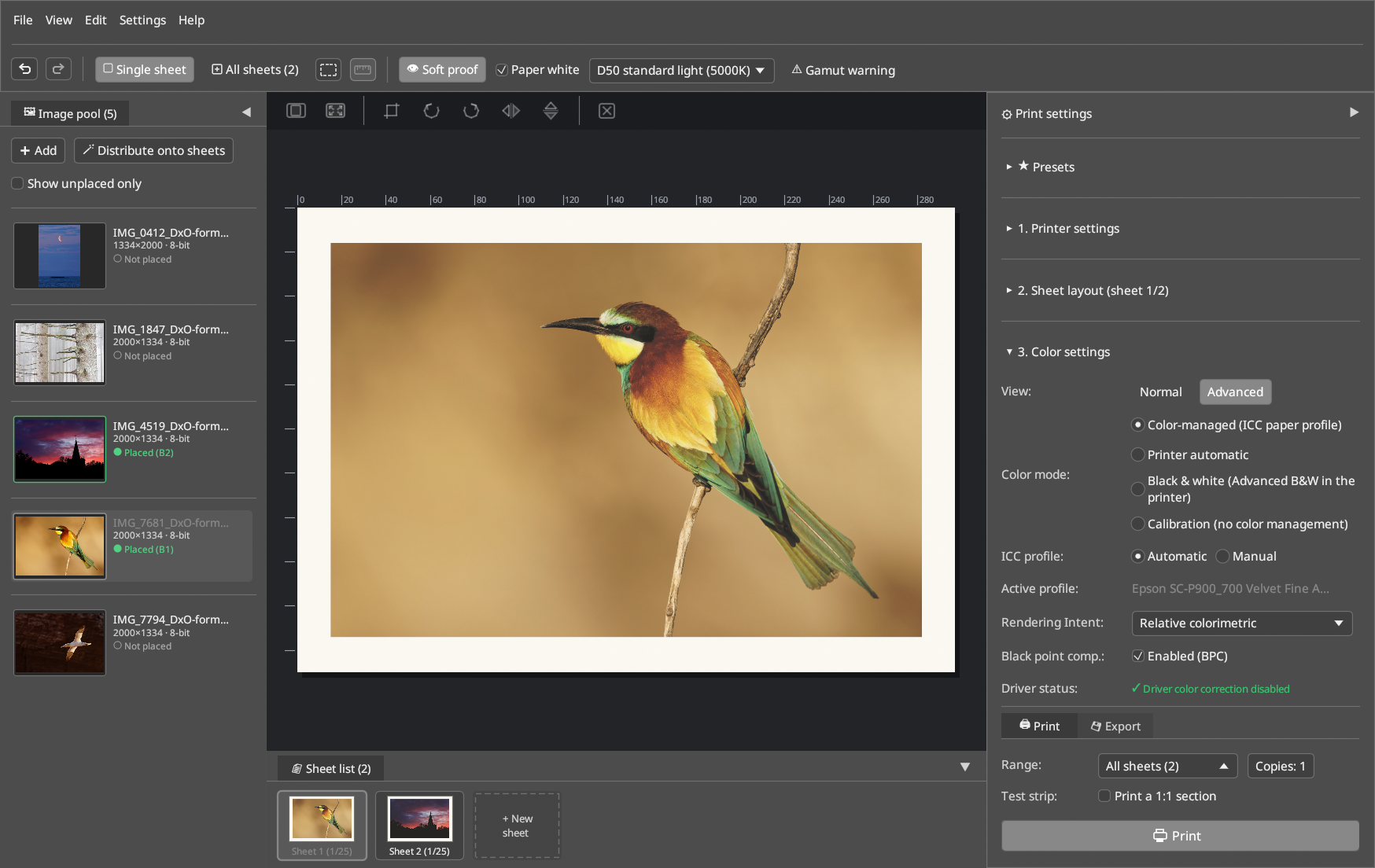
- Soft Proof View (
👁 Soft proofin Top Toolbar): Simulates the selected paper ICC profile live in the sheet canvas — including the reduced black density on matte papers and paper white simulation (Paper white,Ctrl+Shift+W). - Viewing Light Temperature: Switchable between:
D50 standard light (5000K)— print shop / ISO viewing booth standardD65 daylight (6500K)— daylight / standard monitor white pointWarm gallery light (3200K)— warm museum / living room halogen lighting- Gamut Warning (
⚠ Gamut warning): Highlights image regions that fall outside the reproducible color gamut of the selected paper-and-ink combination with a warning overlay. - Monitor Color Management (
SettingsMenu at Top): Global configuration of the monitor color space (Automatic (Wayland / KWin),Display P3,Adobe RGB,sRGB) and live status of the Wayland color management protocol (wp_color_manager_v1) are located in the top Settings menu. - What happens: With
Automatic (Wayland / KWin), LumaPrint tags its window with the monitor's color space at the compositor (KWin) (Display P3orAdobe RGBon wide-gamut monitors). The page preview, page thumbnails and image thumbnails are converted into that space and use the monitor's full gamut — no clipping to sRGB. - Known limitation — theme colors: UI colors (themes, accent colors, icons) are sRGB values and are not converted. On a wide-gamut monitor, colored accents therefore look somewhat more saturated than intended; neutral grays are unaffected. This is deliberate: accurate image display in the monitor's full gamut takes priority. If you need an exactly color-accurate UI, choose
sRGB— but the image preview is then clipped to sRGB as well. - Fallback: If the compositor rejects the requested color space, the window stays sRGB and LumaPrint converts the preview to sRGB too (the preview always follows the color space actually in effect).
5. Black & White (Advanced B&W Photo — Advanced View)
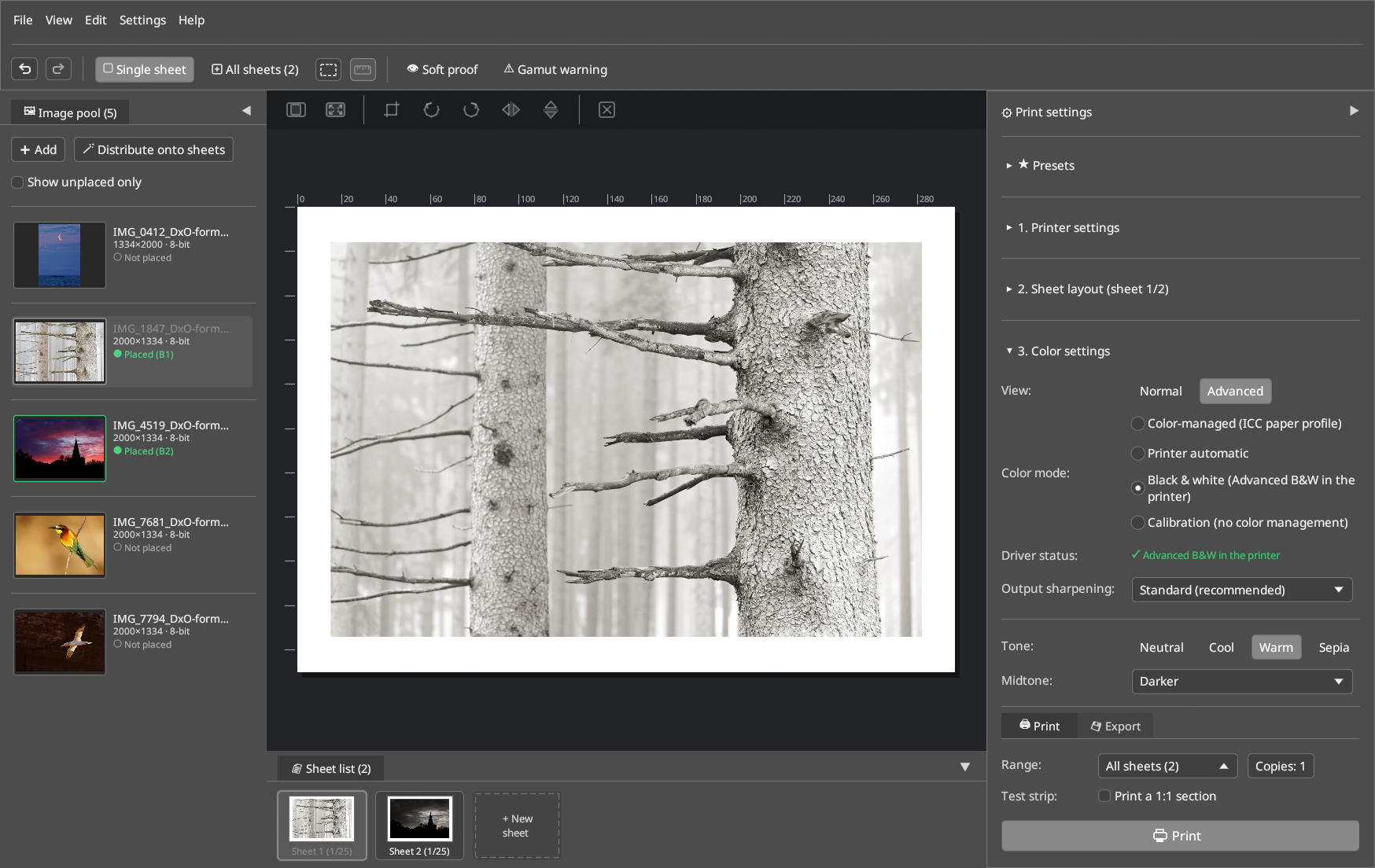
Converts color or grayscale images into neutral or finely toned black-and-white prints utilizing the 3 black/gray inks (PK/MK, LK Gray, LLK Light Gray):
- Who Computes the Toning?
- Epson SC-P900/P700 with epson-p900-escpr-cups: Just like in Epson Print Layout, the printer firmware performs the grayscale conversion and toning. LumaPrint sends the image in sRGB with EpsonColorMode=AdvancedBW and all slider parameters (EpsonAbw*); the driver status indicator shows ✓ Advanced B&W in the printer. The on-screen preview is a close approximation of the firmware rendering.
- Other printers/drivers: LumaPrint computes the 16-bit toning itself (Black & white (LumaPrint toning)) and sends the result with driver color correction disabled.
- Tone Presets: Neutral, Cool, Warm, Sepia, or custom fine tuning. Cool (−8 / −45) and Warm (4 / 20) match the exact coordinates of Epson Print Layout; Sepia uses LumaPrint's own coordinates.
- 2D Color Wheel: Interactive toning wheel with numeric input (Horizontal: Green ↔ Magenta, Vertical: Blue ↔ Yellow, each -75 .. +75 as in EPL).
- Midtone (Base Gamma Characteristic): Light (1.6), Normal (1.8), Dark (2.0), Darker (2.2, default as in EPL), Darkest (2.4).
- Fine Tonality Sliders:
- Brightness (-25 .. +25)
- Contrast (-25 .. +25)
- Shadow tonality (-25 .. +25) — specifically controls shadow detail and separation
- Highlight tonality (-25 .. +25) — specifically controls highlight gradation
- Max. optical density (-50 .. 0) — adapts the deepest black point (\(D_{\max}\)) to the paper
- Highlight Point Shift (User Guide p. 31):
- Off: Pure white remains unprinted paper white.
- On (image area): Applies a minimal amount of Light Gray (LLK) ink to white image areas to eliminate gloss differential between printed and unprinted regions on glossy and baryta papers.
- On (full page): Applies the subtle base coating across the entire printable area of the page.
- Save / Export / Import ABW Toning Presets: Custom B&W toning recipes can be named and saved as JSON files.