3. Layout Modes & Template Studio
Under 2. Sheet layout (cf. EPL User Guide pp. 25–28, 32–35, 43–44), LumaPrint offers all four classic layout modes from Epson Print Layout as well as the extended Gang sheet (auto nesting) composer mode.
1. Standard (Single-Image Layout, p. 25)
- Orientation: Portrait or Landscape.
- Borderless Printing (pp. 43–44):
- Available when a
(borderless)source is selected under Paper source. - Borderless expansion (Auto-Expand): Enlarges the image slightly beyond the paper edges (level Min / Mid / Max according to the official 360 dpi expansion tables of the SC-P900) to prevent white slivers caused by paper transport tolerances.
- Borderless without expansion (Retain Size): When Borderless expansion is set to Off and Fit to paper is active, the image is printed strictly up to the nominal paper edge.
- Centering: None (free placement) (freely movable by mouse), Center (horizontal & vertical), Centered vertically, or Centered horizontally.
- Size Mode:
- Margins: Direct input of Top / bottom and Left / right margins in
mmorinch. - Image size: Direct input of Position (L / T) and Width / height (optionally with Lock aspect ratio).
- Original: Sets the image size to the physical dimensions stored in the image file (pixels ÷ embedded resolution, e.g., 1600 px at 360 dpi = 112.9 mm). Resolution metadata is read from TIFF, JPEG (JFIF/EXIF), and PNG files. If the file has no embedded resolution, the button is hidden. The same action is available in the slot context menu under Image size → Original size.
- Frame Color & Frame Line:
- Frame color: Fills the area outside the image within the printable area or draws a colored border.
- Frame line: Draws a fine rule (configurable color and line Width in
mm, e.g.,0.3 mm) directly around the image.
2. Panorama (Roll Paper & Banner, p. 26)
- Automatically scales a panoramic image to fit the selected Roll width (e.g.,
17 inch / 431.8 mmon the SC-P900 or13 inch / 329 mmon the SC-P700) or the printable width on cut sheets, and calculates the required banner length automatically.
3. Gallery Wrap (Canvas Stretcher Frame, pp. 26–27)
Designed for printing on canvas media that will subsequently be stretched onto a wooden stretcher frame:
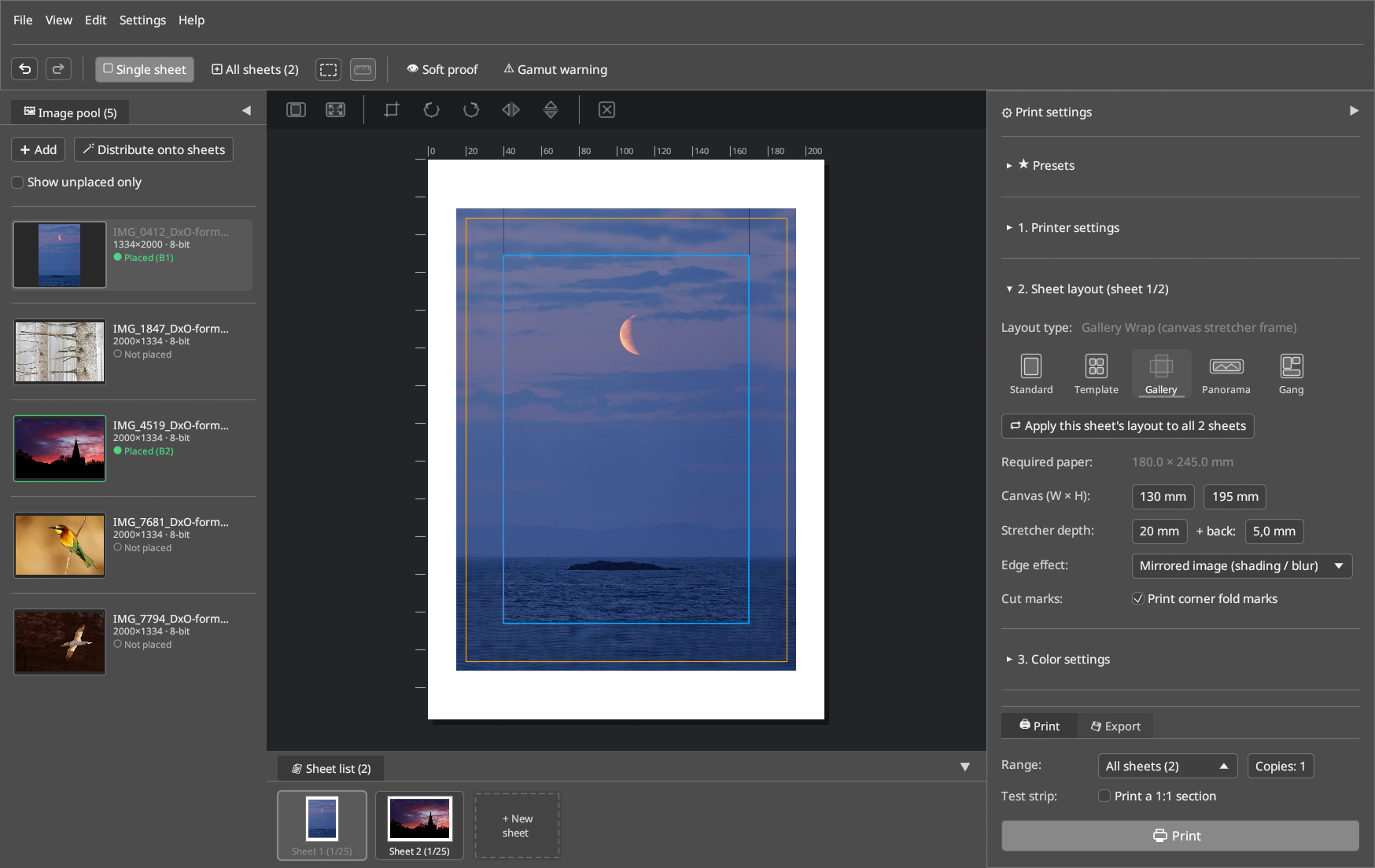
- Canvas (W × H): Front face dimensions of the stretcher frame (
Width × Height). - Stretcher depth: Frame thickness (e.g.,
18 mm,20 mm,38 mm, or custom). - + back (Back-Side Wrap Extension): Additional margin (
0.0 .. 12.7 mm) folded around the back of the stretcher bar for stapling. - Required Paper & Live Check: LumaPrint immediately computes the minimum required paper size: $\(W_{\text{req}} = W_{\text{canvas}} + 2 \cdot (\text{Stretcher depth} + \text{Back extension})\)$ If the selected sheet is too small, a red warning message appears in the status bar.
- Cut marks (
Print corner fold marks): Prints precise corner and fold marks for trimming the stretcher frame corners. - 6 Edge Effects for the Side Flaps:
- None (white edge): Side flaps remain unprinted (white).
- Color: Side flaps are filled with a solid user-selectable color.
- Mirror image: Mirrors the outer image border outward across the fold line.
- Mirrored image (shading / blur): Mirrors the image border and applies an adjustable Gaussian blur/softening (
0..100 %) to the side flaps. - Wrap image: Extends the main image continuously over the side edges.
- Wrap image (shading / blur): Extends the image over the side edges and softens the wrapped border.
4. Template (Multi-Image Templates & Template Studio, pp. 28, 32–35)
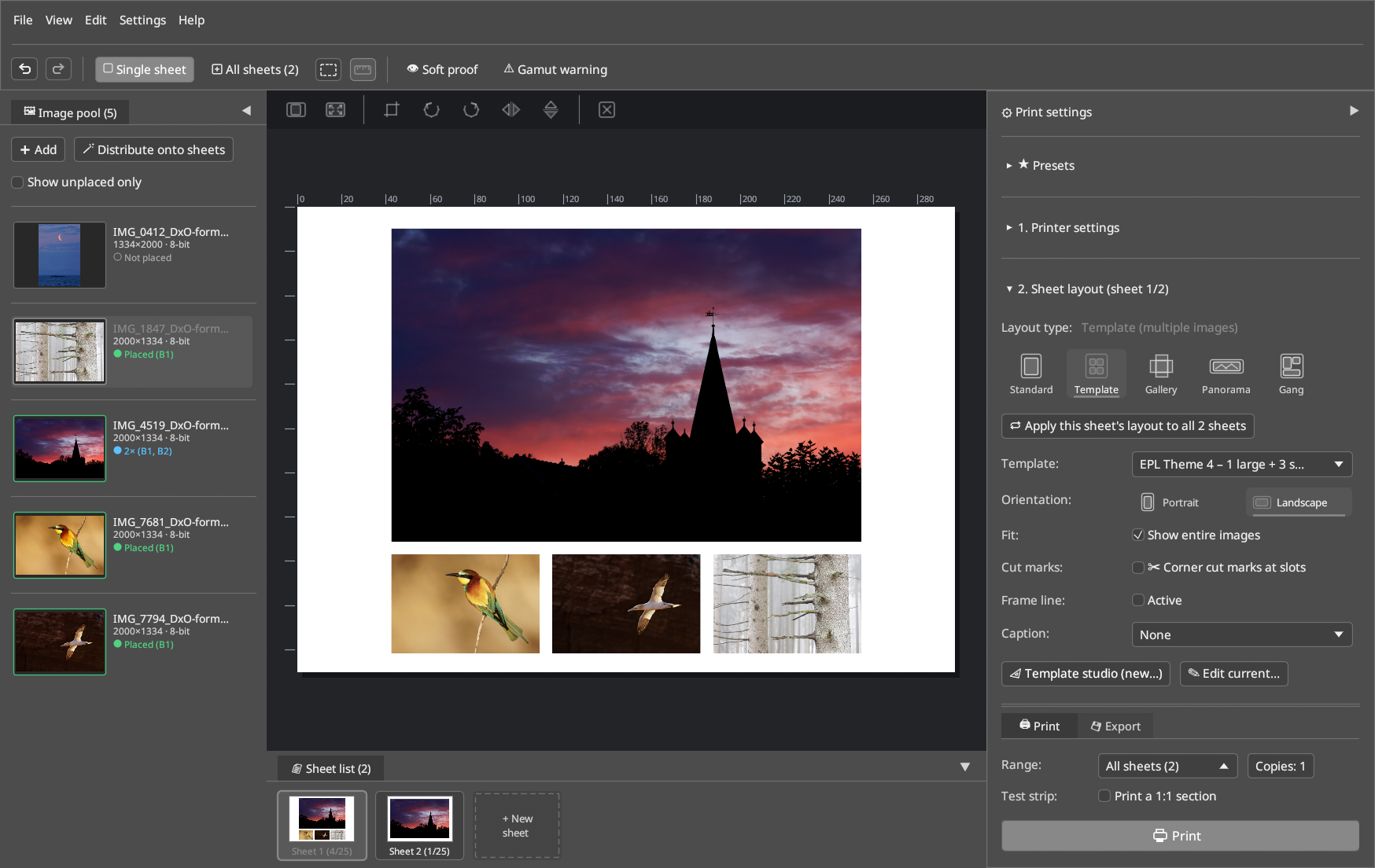
- Includes all original layout templates from Epson Print Layout (
AirAssetsTempleteJson) as well as multi-image grids. - 📐 Template studio (new…): Two-step template editor:
- Step 1: grid & bento wizard: Creates custom grid layouts with 1 to 5 rows and 1 to 5 columns, adjustable outer margins and gutters (
Gutter H / V), cell merging (⊞ Merge cells) for Bento layouts, and quick presets. - Step 2: free slot editor (one-way): Free mouse placement, exact millimeter dimensions, magnetic snapping, corner cut marks (
✂ Corner cut marks at slots), captions, and fit mode (Show entire images vs. Fill area). - Templates can be saved, edited (
✎ Edit current…), and exported/imported as.jsonfiles.
5. Gang Sheet (Auto Nesting / Collection Sheet)
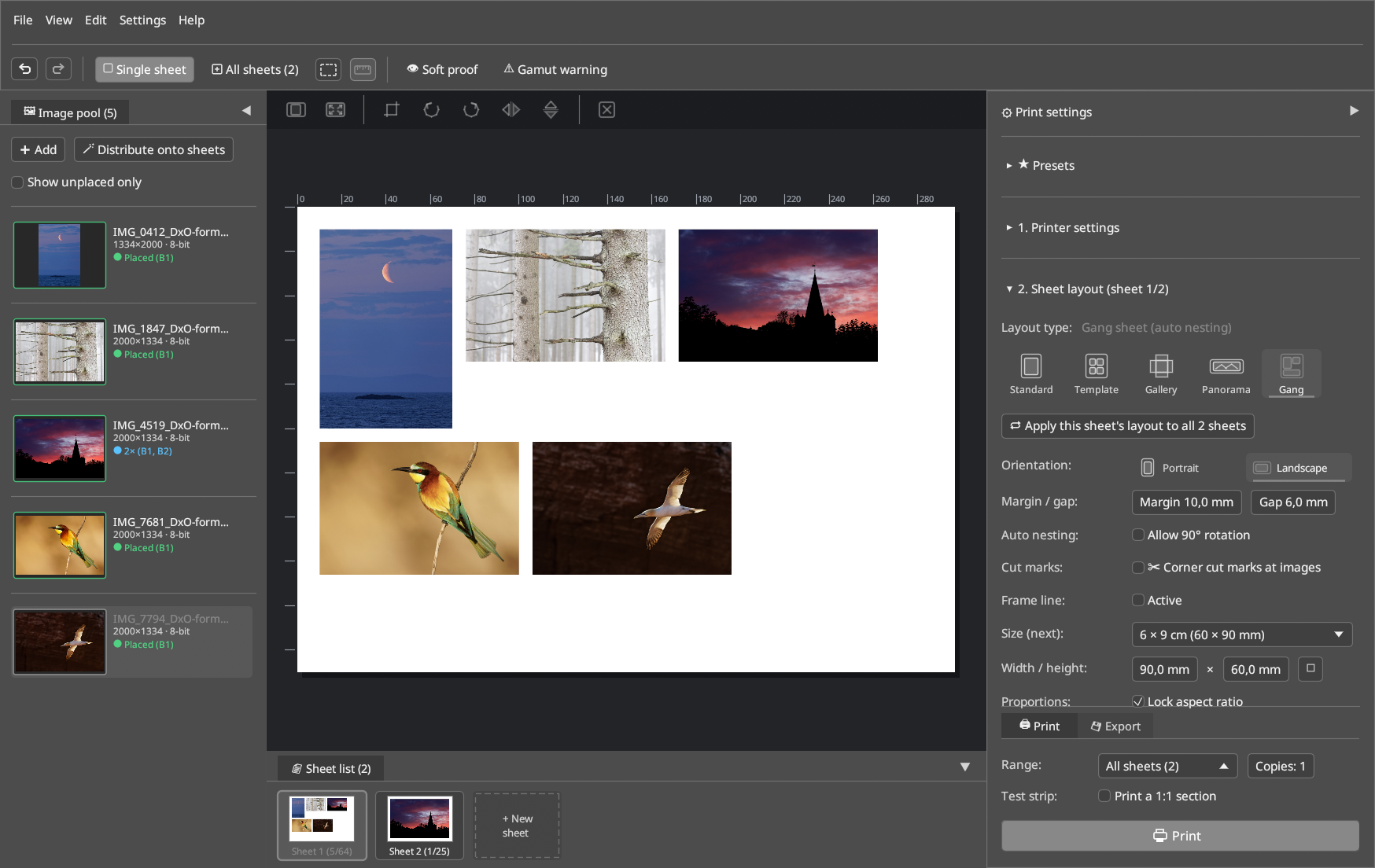
- Combines multiple images of equal or mixed sizes onto a single sheet (or automatically across multiple sheets) to minimize paper waste.
- Target Size (
Size (slot #)/Size (next)): Set individual millimeter dimensions or select standard photo sizes (9 × 13 cm,10 × 15 cm,13 × 18 cm,15 × 20 cm,20 × 30 cm,Square 10 × 10 cm) per slot or apply them to all images on the sheet (Apply to all). - Auto Nesting & Orientation: Automatically packs placed images onto the sheet according to Sheet margin, Gap, and optional automatic 90° rotation (Rotate images 90° automatically if they fit better). If additional images exceed the current sheet's capacity, LumaPrint automatically overflows them onto a new sheet.
- Cut Marks & Frame Line: Optional corner cut marks (
Corner cut marks around each image) and frame lines for easy trimming.