3. Output Mode, Simulation & Export
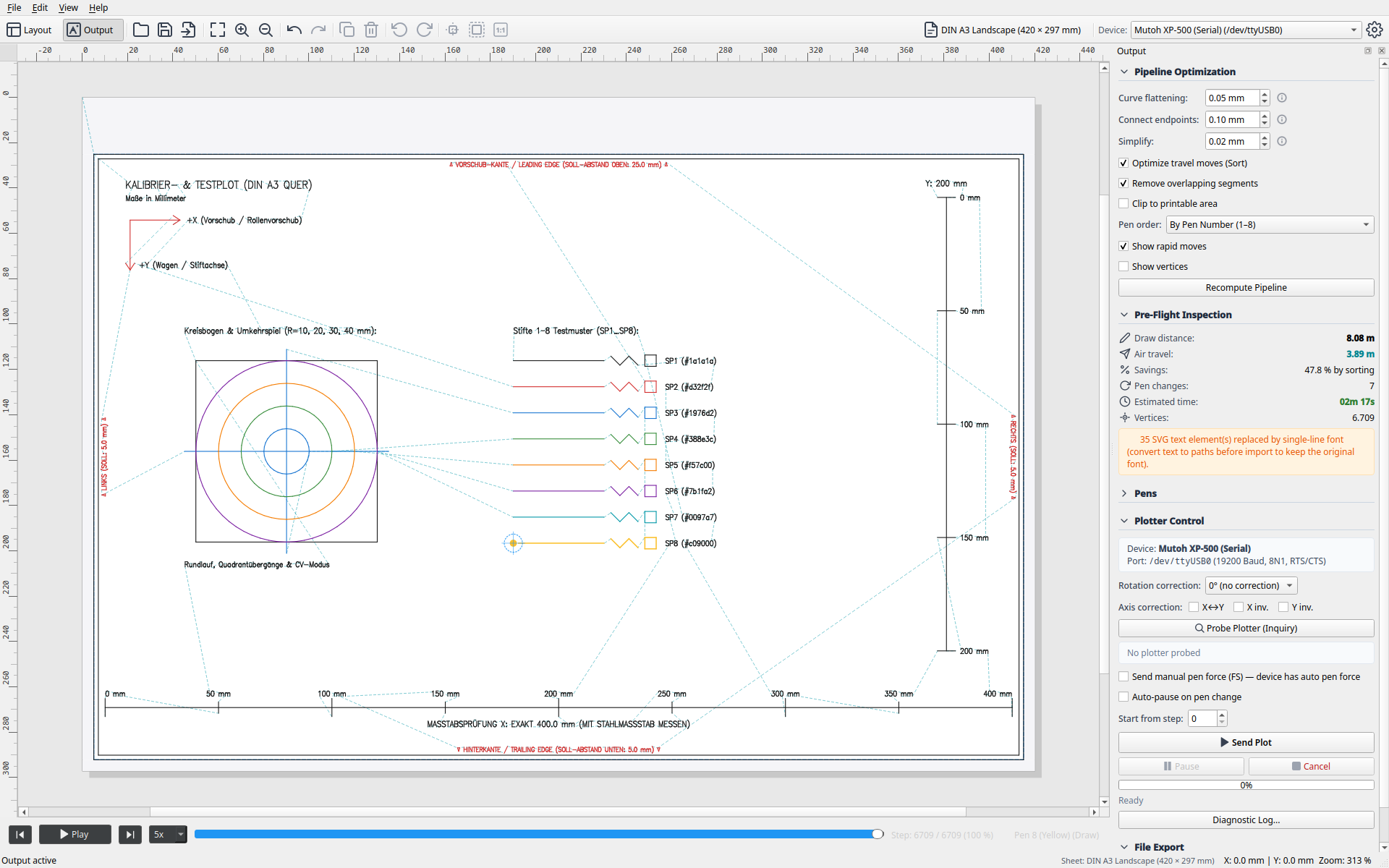
In Output Mode (Plot Mode), your artwork is compiled for physical hardware. You can inspect optimized toolpaths including pen-up air moves, simulate the plot along an interactive timeline, check travel savings, and stream the job directly to the plotter or export it to disk.
1. Optimization Pipeline (Tuning)
At the top of the Output dock, you can configure the algorithms that turn raw vector geometries into efficient machine moves (collapsible by clicking the section header):
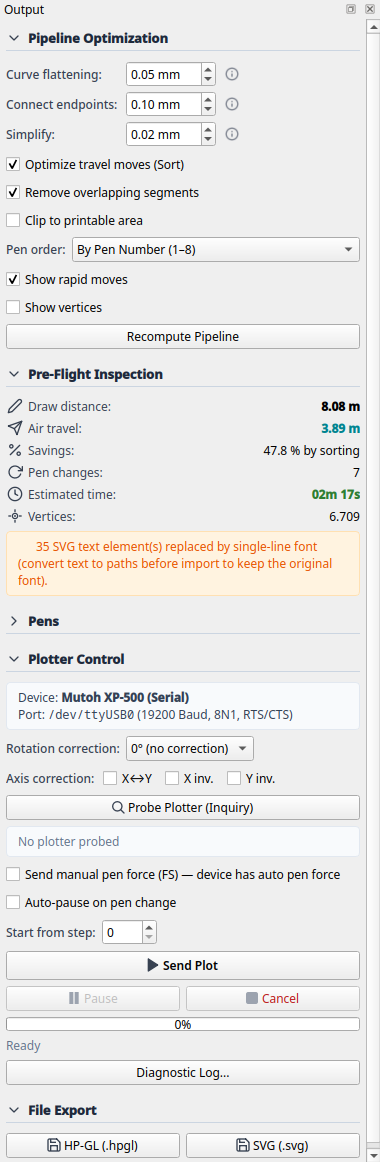
- Merge Collinear / Adjacent Paths: Finds open endpoints within close proximity and joins them into continuous polylines.
- Tolerance slider (mm): Maximum distance between two points to be considered connected (default: 0.1 mm).
- Effect: Prevents redundant pen lifts; lines are drawn in smooth, unbroken strokes.
- Reverse Paths: Allows the pipeline to reverse the direction of a line if the previous stroke ended closer to its end than its start.
- RDP Simplification (Ramer-Douglas-Peucker): Filters out redundant vertices along straight or evenly curved lines.
- Tolerance slider (mm): Typically 0.05 to 0.1 mm.
- Effect: Produces leaner data streams, reduces load on the plotter's CPU, and results in smoother motor movement without stuttering.
- Path Optimization (2-Opt TSP):
Solves the Traveling Salesperson Problem for toolpath ordering. Permutes lines to minimize non-drawing travel distance (
Pen Up). - [ Apply Pipeline ]: Recomputes all optimizations, updating the canvas visualization and pre-flight metrics.
2. Pre-Flight Inspection & Metrics
Before sending a plot, the pre-flight analysis provides accurate job data:
| Metric | Typical Value | Description |
|---|---|---|
| Drawn Distance | 12.85 m |
Actual distance traveled with pen down on paper (Pen Down). |
| Air Travel Distance | 3.42 m |
Rapid travel distance with pen lifted (Pen Up). |
| Travel Savings | +54.2% |
Travel reduction compared to unoptimized raw SVG data achieved via 2-Opt. |
| Pen Swaps | 4 |
Number of tool changes in the pen carousel. |
| Estimated Runtime | 3m 45s |
Estimated duration based on plotter speed parameters. |
3. Timeline Simulation with the Scrubber
Located directly below the main canvas is the interactive simulation bar:
Canvas Visualization in Output Mode:
- Colored Lines: Trace drawn vectors in their assigned pen colors.
- Cyan Dashed Lines: Represent rapid travel moves (
Pen Up), showing exactly how the pen jumps between elements. - Yellow / Orange Markers: Highlight pen-down and pen-up positions.
- Toolhead Cursor (Crosshair): Displays the pen's exact coordinates at the current simulation timestamp.
Simulation Controls:
- Scrubber Slider: Drag the slider to scrub through the plot job forward or backward at any speed.
- [ Play ] / [ Pause ]: Start or pause real-time playback animation.
- Speed Selector: Toggle between 1x, 2x, 5x, and 10x playback speeds.
- Step Controls: Inspect critical corners and intricate details vector by vector.
4. Selective Plotting (Pen Filtering)
In the Pens section of the Output dock, each pen has its own toggle checkbox:
- Enable / Disable Pen:
- Unchecking a pen excludes its lines from the current plot job.
- Typical Use Cases:
- Manual Pen Swaps: If your plotter only has a single pen holder, uncheck all pens except Pen 1. Once finished, swap the physical pen, enable Pen 2, and plot the next layer.
- Dry Runs & Test Plots: Plot only outline frames or fine hatching to test alignment before committing to a full multi-pen drawing.
5. Live Plotting on Hardware
The Plotter Connection & Output section controls physical communication:
Step 1: Connection & Inquiry
- Select the target interface (e.g.
/dev/ttyUSB0on Linux,COM3on Windows, ortcp://...). - Click [ Probe Plotter (Inquiry) ].
- LINTO sends
OI;(model query) andOH;(hard-clip query) to the device. - On success, the status banner lights up green:
7585B (A3, 40 U/mm) • Hard-Clip: 390x287 mm.
Step 2: Start Plot
- Click [ Send Plot ].
- The job streams in the background via
SerialStreamer. - A progress bar indicates transmitted percentage.
- On the canvas, the toolhead cursor moves synchronously with the physical pen head.
Step 3: Pause or Emergency Abort
- [ Pause ] / [ Resume ]: Pauses command transmission immediately (e.g. to inspect ink or adjust paper) and resumes seamlessly.
- [ Cancel ]: Triggers an emergency stop:
- Immediately transmits
\x1b.Kto flush the device buffer. - Lifts the pen (
PU;). - Parks the pen safely in the carousel (
SP0;).
6. File Export
To archive optimized plots or run them from a separate controller:
- [ Export Plot File (.hpgl)... ]: Generates a clean, standard HP-GL/PLT machine file. Coordinates and pen calls are mapped to the chosen device profile.
- [ Export Plot Vectors (.svg)... ]:
Exports the optimized geometry as an SVG file, organized cleanly into pen groups (
<g id="pen_1">, etc.).